Duration

Windows  ·  v7.6.8

A blocker you can't bypassYour Keyboard and mouse, locked until the timer ends

Start the timer — at bedtime, mid-game, mid-scroll, whenever you need it. No clicking, no alt-tabbing, no negotiating your way back in before then.

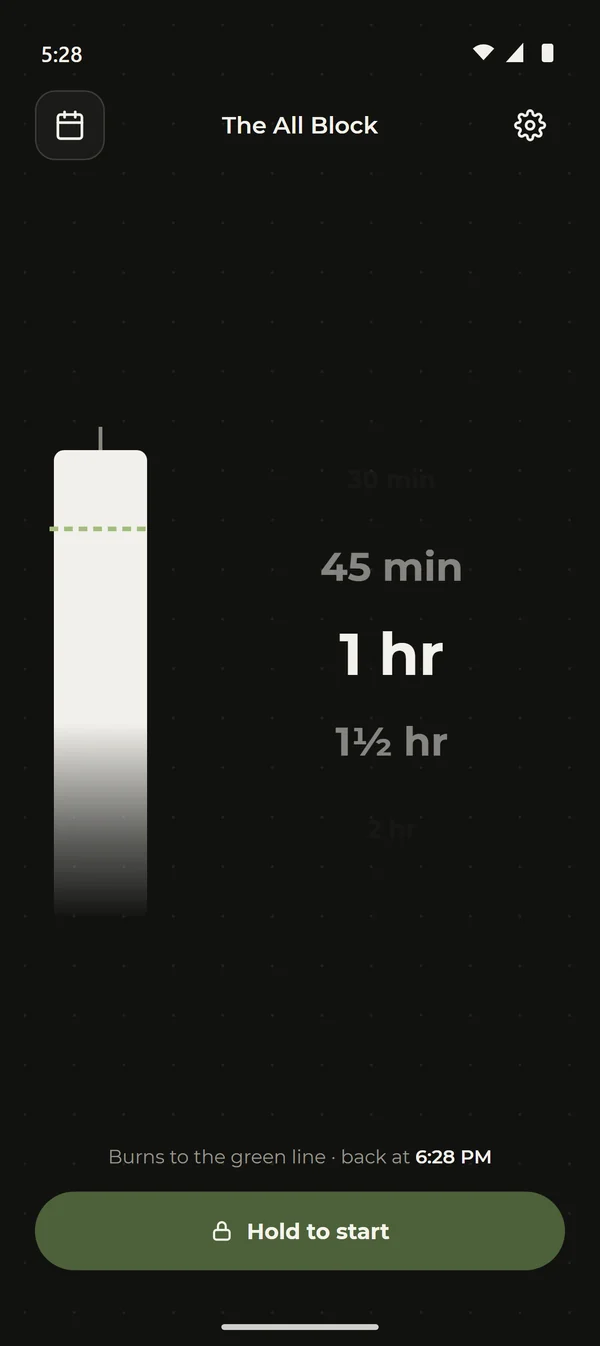
Scroll the wheel — it's the real one

The block

90:00

Locked — keep scrolling

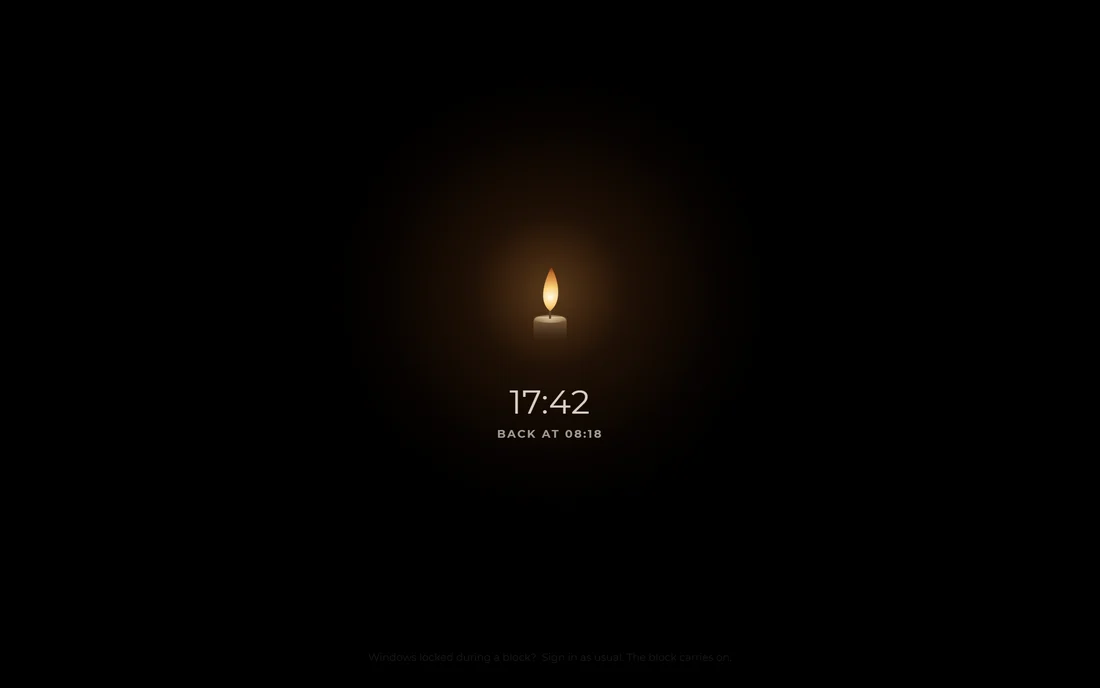
Your mouse and keyboard stop working — system-wide, not just in this app. No pause button, no “just five more minutes”, and it comes back still locked if you reboot to escape it.

  • MouseDead
  • KeyboardDead
  • Alt+Tab, Win, Ctrl+Alt+DelDead
  • The Task Manager escapeDead
  • The clockKept

Who it's for

If willpower were enough you'd have stopped by now

Nobody installs a blocker because they're short of good intentions. They install one because the intention keeps losing to the moment. These are the moments people bring it here for.

From the research on self-control. Neither study is about The All Block.

“Situational self-control strategies—which can nip a tempting impulse in the bud—may be especially effective in preventing undesirable action.”
Duckworth, Gendler & Gross, “Situational Strategies for Self-Control”, Perspectives on Psychological Science, 2016. Source

Across 7,827 reports of everyday desire from 205 adults, desires for media use produced more self-control failures than any other kind.

Hofmann, Vohs & Baumeister, “What People Desire, Feel Conflicted About, and Try to Resist in Everyday Life”, Psychological Science, 2012. Source

Sleep

The 1am spiral, closed at 23:00

The hours you lose aren't the ones you decided to stay up for — they're the ones that just kept going. A block that arrives on its own at 23:00 ends the night before it gets away from you, whether or not you'd have chosen to stop. Fix the schedule once and your sleep stops being negotiable.

Gaming  ·  doomscrolling

“One more” turned into four hours again

You already know it's happening while it happens. That's the cruel part — and it's why a blocker you can switch off is no help at all. Set a block and the machine simply stops answering. There is nothing left to negotiate with.

Parents

A bedtime the PC actually keeps

No standing over anyone, no nightly argument, no clever child finding the setting you switched on. Schedule the evening, put the Accountability Lock on it, and the password is yours. The computer does the saying-no.

Study  ·  deep work

Revision that starts without you agreeing to it

Deciding to start is the hardest part of every session, and it's a decision you have to win again tomorrow. Put it in the schedule once and you never have to make it again — 09:00 arrives, and so does the block.

Coming from Cold Turkey or Freedom

They block a list. This blocks the machine.

  • Cold TurkeyA list
  • FreedomA list
  • FocusMeA list
  • LeechBlockOne browser
  • StayFocusdOne browser
  • The All BlockMouse + keyboard

Every other blocker works from a list of things — these sites, those apps, a list you're expected to keep current. A list has edges, and the itch is extraordinarily good at finding them: the app you forgot to add, the second browser, the phone hotspot, the setting you can still reach because your keyboard still works.

The All Block keeps no list, because it isn't blocking things. It takes the mouse and the keyboard away for the length of the session. Not the browser — the computer. There is no app it forgot about and no window you can click into instead, because clicking has stopped happening.

And it closes the doors those apps leave open. It runs as admin, so nothing else can shut it down. It survives a reboot and comes back still locked. Task Manager, Alt+Tab and Ctrl+Alt+Del go with everything else.

Then the schedule removes the last door — you. A block that turns up on its own at 09:00 was never a decision you made, and the itch lives entirely inside that decision. Put the Accountability Lock on top and even you can't take it back.

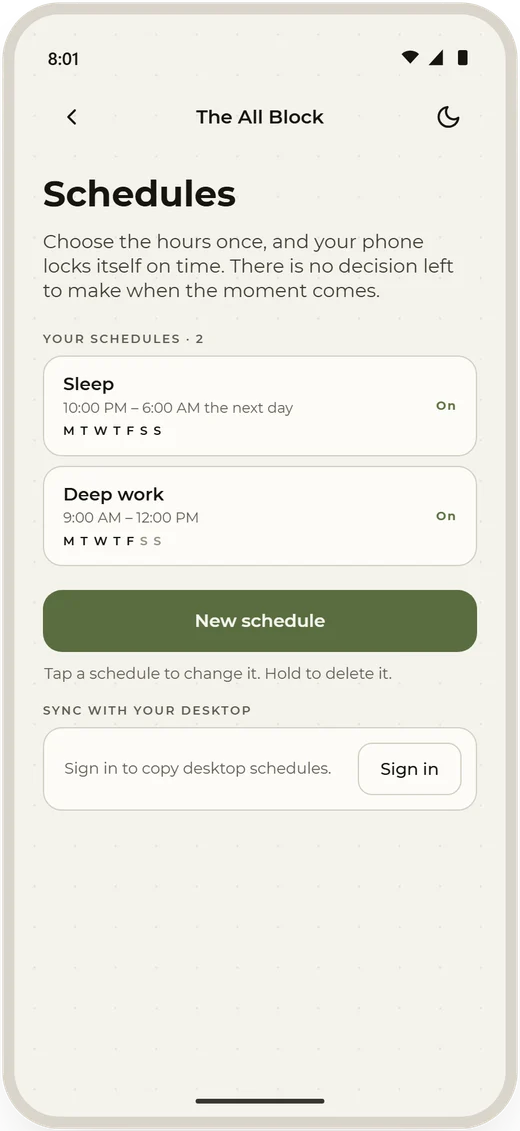
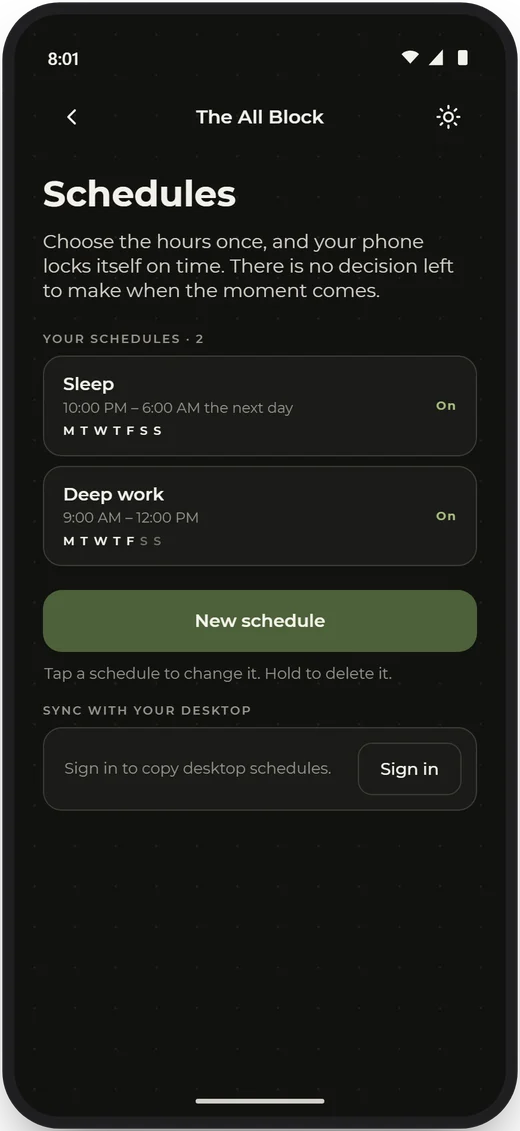
Schedule

Never have to decide again

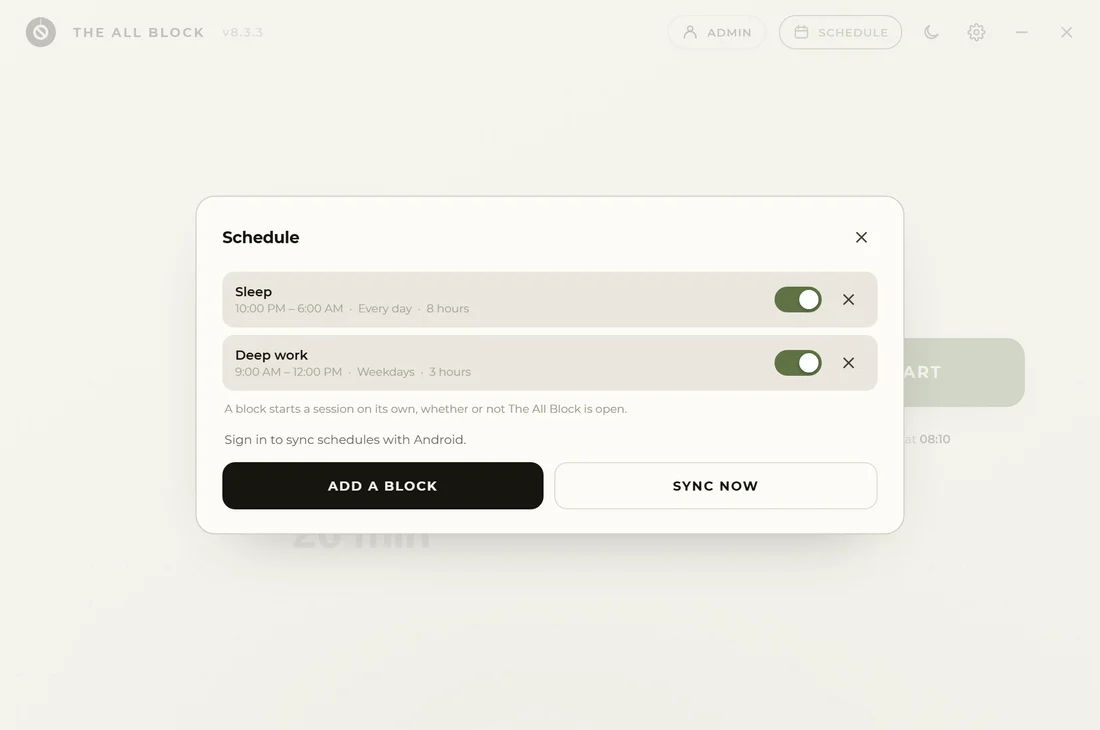
Starting is the decision you lose. So set the week once and stop making it — The All Block turns up on time whether or not you were planning to be good that day.

Hour891011 1213141516 171819
Mon
09:00 · 1 hr 30 14:30 · 1 hr
Tue
09:00 · 1 hr 30
Wed
09:00 · 1 hr 30 14:30 · 1 hr
Thu
09:00 · 1 hr 30
Fri
09:00 · 1 hr 30 14:30 · 1 hr
Sat
20:00 · off
Sun
20:00 · off
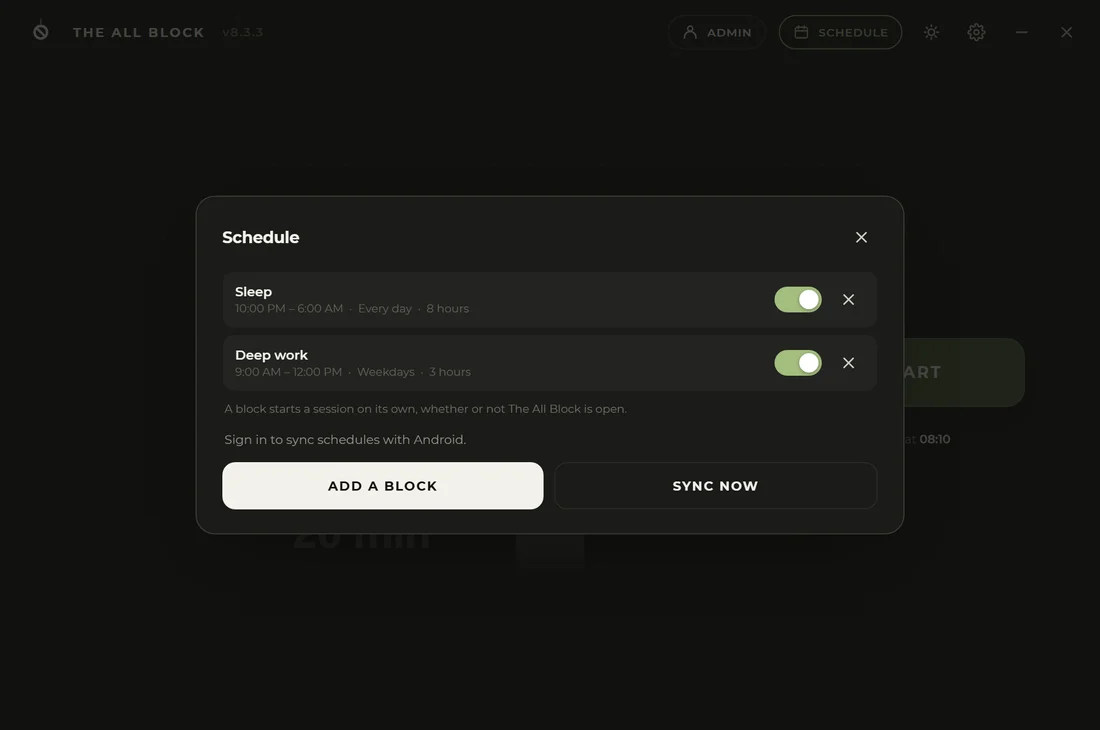
The Schedule window listing two recurring blocks, weekdays at 09:00 and every evening at 20:30, each with an on and off switch
Set it onceA block starts on its own, and switches off without losing the setup.
The Session stats window showing total focus time, session count, a six day streak and the four most recent sessions
The receiptsFocus time, sessions, and the streak you'd rather not break.

Accountability Lock  ·  Free

Hand the key to somebody else

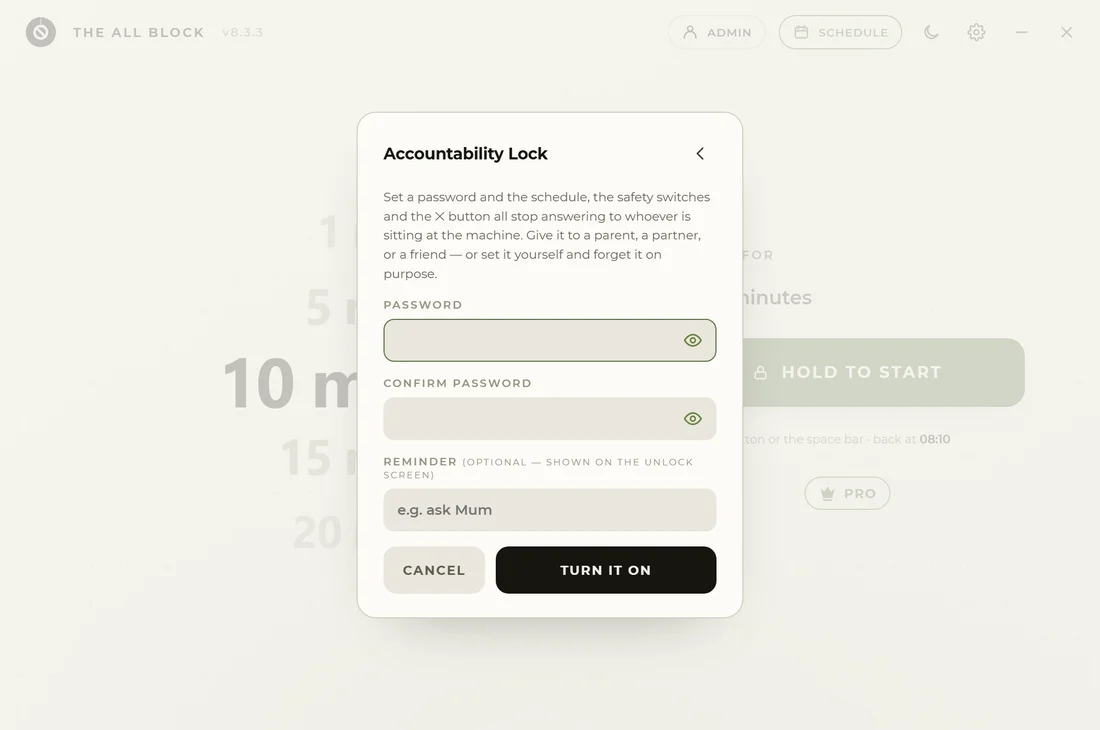
A schedule only holds until the person it's meant to stop goes into Settings and deletes it. So set a password — and let a parent, a partner, a friend, or your own steadier self twenty minutes ago be the one who holds it.

  • Blocks can't be edited or deleted
  • Blocks can't be switched off
  • The All Block can't be closed or quit
  • It re-arms itself at every restart
  • Turning it back on never needs the password
The Accountability Lock window in The All Block: the lock is on, with a reminder reading ask Mum, a password field, and buttons to leave it on or unlock
This is the whole thingOne password, and the schedule stops answering to whoever is sitting at the machine.

One thing it deliberately leaves alone: the monthly emergency unlock. A lock with no exit at all is how somebody ends up unable to answer a phone call — so the way out stays scarce and counted rather than disappearing.

Inside

Built to not be argued with

Accountability Lock

A password that stops the schedule being edited, switched off or closed — by anyone who doesn't have it. Free, in every copy.

Survives a restart

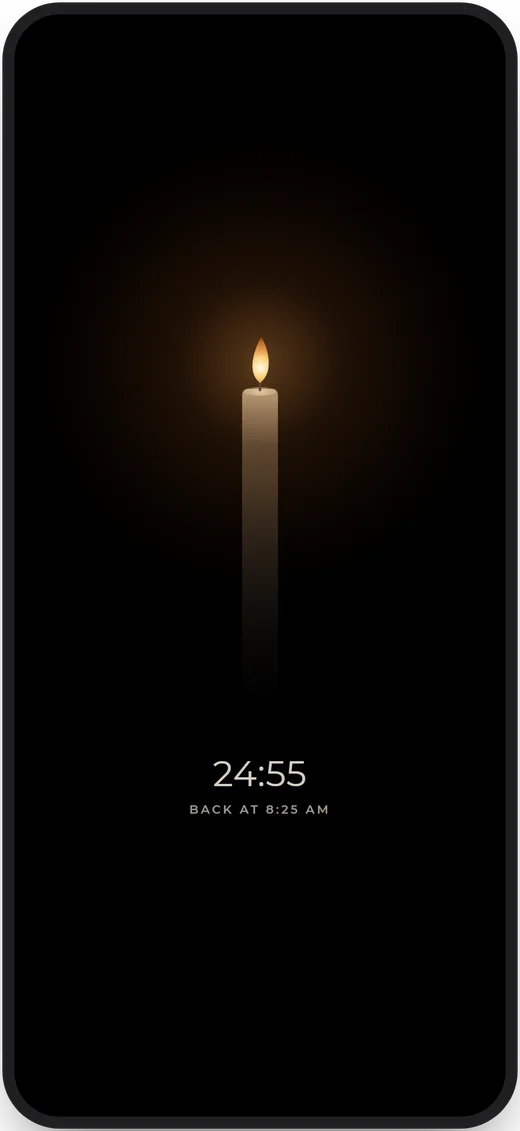
Reboot mid-block and it comes back still locked, with the clock where you left it.

Schedules that fire themselves

Pick the days, the time and the length. It starts without being asked — three blocks free, as many as you like on Pro.

Session history

Focus time, sessions and a running streak — kept on your machine, nowhere else.

Nothing can shut it down

It runs as administrator, which is what lets it hold the lock against Task Manager and everything else on the machine.

Light and dark

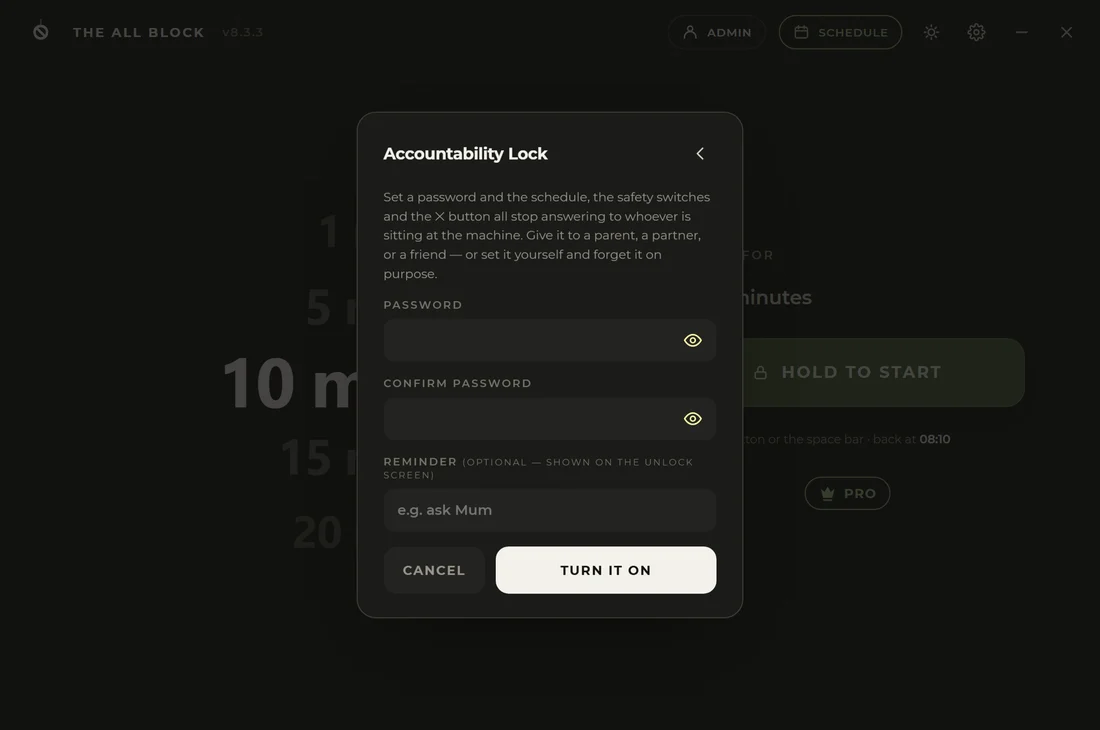
Both are first-class, and the switch is one click in the header.

The All Block settings window: resume on restart, session stats, schedule, the Accountability Lock, a desktop shortcut, About, Go Pro and sign in
All of it in one panelSettings is a single screen, because there isn't much to set.
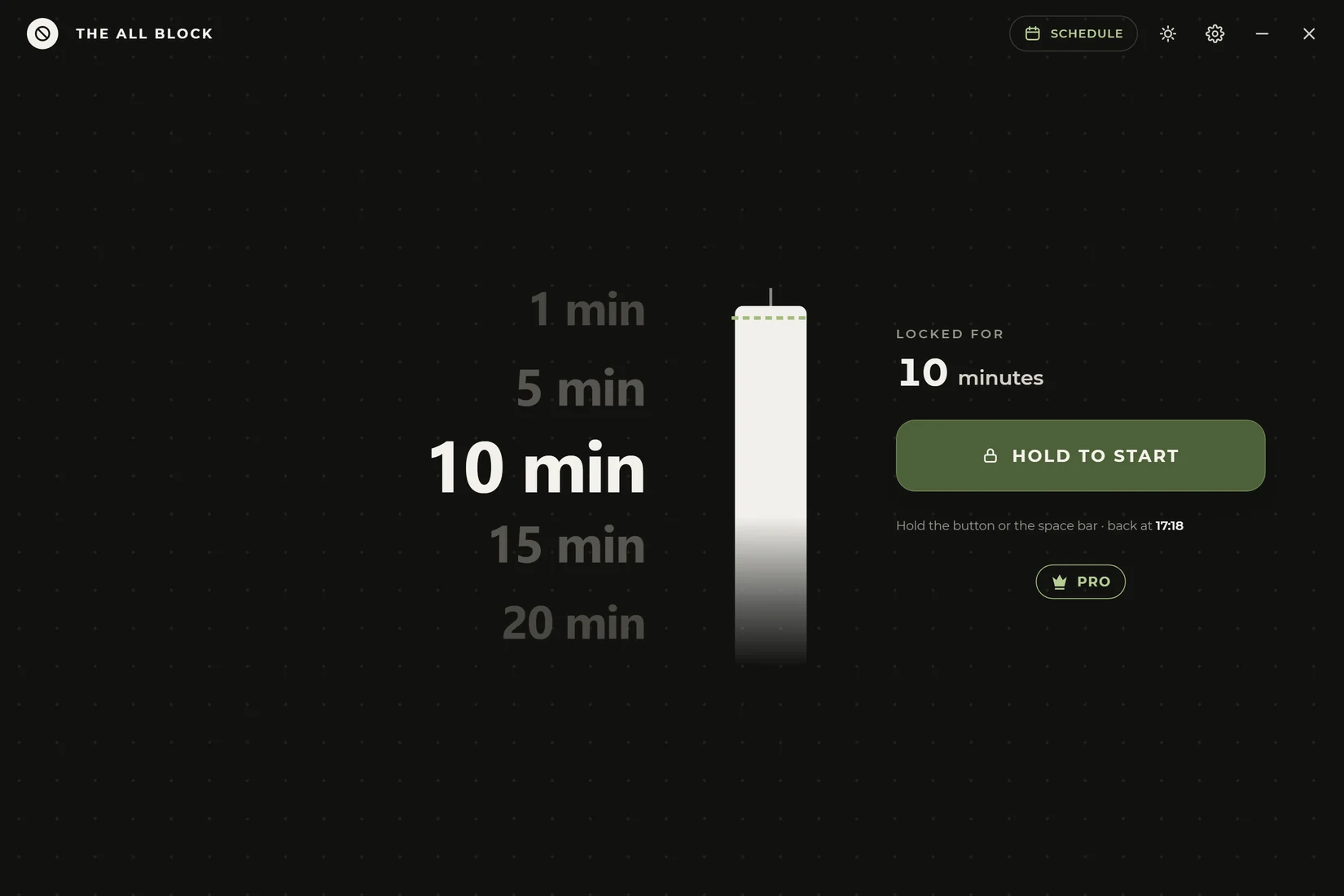
The All Block main window in dark theme showing the duration wheel set to 10 minutes
Dark, if you'd ratherOne click in the header, and it remembers.

Pricing

Pay once, or not at all

Manual sessions, the schedule and the Accountability Lock are all free forever — that's the promise the app is shared on. Pro only lifts the caps on how long and how many.

Standard

Free

No account, no expiry, no nag screen.

  • Manual sessions, 10 seconds to 3 hours
  • Three scheduled blocks
  • Scheduled blocks up to 3 hours
  • Accountability Lock — a password someone else holds
  • One emergency unlock a month
  • Survives restarts, full session history
Download The All Block

Pro

£4.99 once

One payment. Not a subscription, not a rental.

  • Everything in Standard
  • Sessions of 4, 6, 8, 12 and 24 hours
  • Unlimited scheduled blocks
  • Scheduled blocks up to 24 hours
  • Three emergency unlocks a month
  • Optional account keeps Pro across reinstalls
Get it in the app

Pro is bought inside The All Block — open the app, hit Pro, and checkout opens in your browser. Payments are handled by Paddle, who act as the merchant of record. Full refund within 14 days, no questions asked — see the refund policy. Only need one more emergency unlock this month? A single Escape is £0.99 and never expires — no need to go full Pro for it.

First run

Windows will warn you

The All Block isn't code-signed yet, and SmartScreen warns about anything unsigned no matter what's in it. So you'll see this once, on the first launch. Here's the way through it.

  1. The Windows protected your PC dialog, with the More info link highlighted
    Click “More info” The warning says Windows doesn't recognise the publisher — not that it found anything wrong.
  2. The expanded SmartScreen dialog showing the Run anyway button
    Click “Run anyway” The button only appears after the first step.
  3. The Windows User Account Control prompt asking to allow The All Block to make changes
    Click “Yes” on the admin prompt Admin is what lets The All Block hold the input lock against everything else. Without it, some of the blocking is skipped.

About

Why this exists

A note from the developer

I tried pretty much every blocker out there, and always found a way to sneak past them once I'd started — so I built one myself that wouldn't let me, or at least make it not worth my effort to bypass.

Entire project was by one person, not a company or anything. Just a small-time Irish design and software engineer without a team or investors, so your support and feedback would mean so much.

Got an idea or spotted a bug? Email me — I'd love to hear it!

— Auzeo

Free download  ·  Windows 10 & 11

Take tonight back

One file, one wheel, and a computer that finally knows how to say no. Free to download, nothing to cancel.

Windows 10 / 11Single .exe No installFree — Pro is £4.99 once